
This guide requires the prior set up of the Telegram/Discord Channels.
If you require guidance, please see the following articles:
How do I set up a Telegram channel?
Messengers - Telegram
Messengers - Discord
To enable Calendar Events subscription in the existing Telegram/Discord channel, click on the Account button at the top right and select Messengers on the panel on the left.
This will bring you to the Messengers Channels page.
From there, select the desired Telegram/Discord channel. 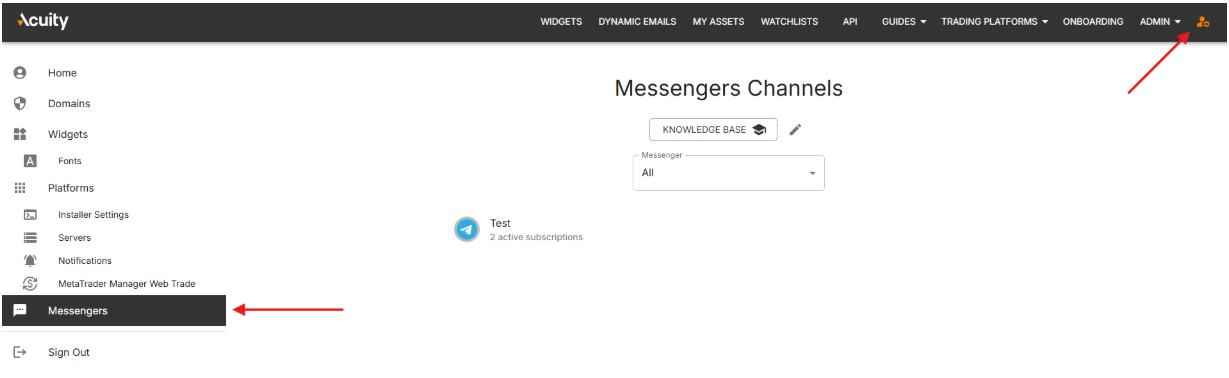
Select the channel you would like to add Signal Centre subscription to, click "Manage" next to the "Calendar Events subscription".
From here, you will be able to configure the behaviour of AnalysisIQ Bot, select the language, event impact, frequency of updates and set a schedule for the Events to be sent to your channel.
Enter the name of the Telegram channel as it appears in Telegram.
At which point, a channel should appear in the dashboard. Click “Manage”.
Click “Create” in Signal Centre Subscription. This covers signals, for Calendar Events in Telegram, see the URL to an article at the end of this document. It is recommended to set up the Signal Centre Subscription first.
You will be brought to the set up page for the bot.
Language - Select a language in which messages will appear. One language per channel. To cover multiple languages, a separate channel set up will be needed. Languages
Signals are available in 23 languages. If you have an English, Arabic, Chinese, or any other specific language channel, the signals will be released in the respective language.
Confidence - This can be adjusted to restrict ideas with lower confidence scores from being posted. Useful for reducing the amount of trade ideas being published, while keeping a higher variety of assets selected.
Our signals are released with a confidence score ranging from 20% to 80%. Please confirm your preference:
Option A: Release all chosen signals (20% - 80%).
Option B: Release signals only within a specific range (e.g., 60% - 80%).
Selected Assets - you can add assets for the trade ideas to be shown. Our recommendation is to add FX Majors, Major Indices, Energies and Popular Metals.
Select assets/symbols you wish to have included in each channel.
To ensure maximum utility, it is best to select assets that are most frequently traded by volume.
Call-to-Actions (CTAs)
- Each signal will include a CTA. Please provide the relevant CTA or URL for each channel. A trader will click on this to be directed to the destination of your choice.
Disclaimer
- Please insert the specific disclaimer text for each channel, in each respective language.
- Example: Disclaimer: This information, provided by Acuity Research Limited, an FCA-authorised and regulated firm (Company Number 07428345), is solely for education purposes. [Broker] does not offer financial advice. Trading derivatives is risky and losses can exceed deposits.
Trade idea updates:
Trade Idea Published - sends a message when a new trade idea is published.
Trade Idea Goes Live - sends a message when a trade idea meets entry requirements.
Closed won/loss - sends a message when a trade idea closes with a win/loss.
Button title and link - below each trade idea there normally is a "Trade Now" or "Open an Account", that will take the users to the custom link. More than one CTA can be added.
Disclaimer - currently not set for the English channel, but we can short text to serve as disclaimer, eg. All Trading Involves Risk, or any other text.